Docs
Import your coach's program
On this page
Train from a program your coach keeps in Google Sheets or Excel? Paste it into Liftorra and it becomes a program with all its days. This is in the web app (on a computer is easiest): open Me, then Import and export, then Program from a sheet.
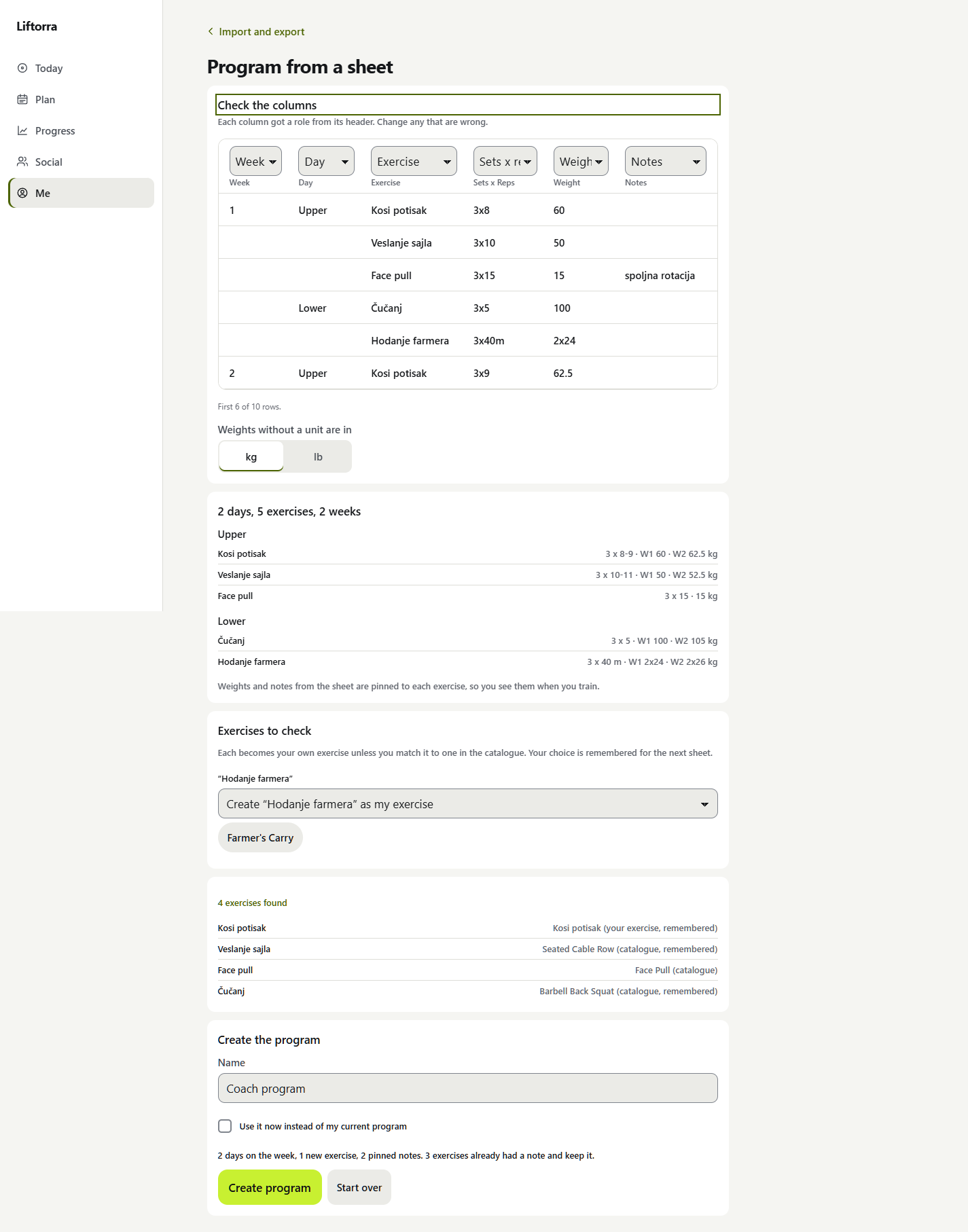
How it works
- In your sheet, select the rows with the header row and copy. Or download the sheet as a CSV file (in Google Sheets: File, Download, CSV).
- Paste into the box, or choose the CSV file (up to 2,000 rows). It is read in your browser.
- Check the columns. Each column gets a role from its header. Change any that are wrong, and the days below update at once.
- Check the exercise names. Names Liftorra knows are matched. For any other name, keep Create as my exercise or pick the matching exercise from the list (suggestions come first). Your choice is remembered for the next sheet.
- Create program. You get a link to open it. Nothing is saved before this step.
The columns it reads best
| Column | What to put in it | Example |
|---|---|---|
| Day | The day or session name. Repeat it on each row, or leave it blank under the first row. | Upper, Day 1, Monday |
| Exercise | One exercise per row. | Barbell Bench Press |
| Sets | How many sets. | 3 |
| Reps | Reps, or a range. | 8-10 |
| Weight kg | The weight. Write lb in the header or after the number for pounds. | 80 |
| Rest | Rest between sets. | 90, 2 min, 2:30 |
| Notes | Anything else your coach wrote. RPE and tempo columns land here too. | Slow on the way down |
Headers in Serbian or Croatian work too: Dan, Vežba, Serije, Ponavljanja, Težina, Pauza, Napomena.
Start from the template
Download the template (a CSV file that opens in Excel and Google Sheets). It has the columns above and two short days, Upper and Lower. Fill in your own rows and paste them back. In the app, Copy example puts the same rows on your clipboard, ready to paste into a new sheet.
Three tips:
- One row per exercise.
- Repeat the day on each row, or leave it blank under the first row.
- Write reps as a range like 8-10.
Other layouts it understands
- A title row above the header (the program’s name) is skipped and used as the name.
- Day heading rows like
UPPER Aon a row of their own, instead of a Day column. - A Sets x Reps column with cells like
3x10(3 sets of 10 reps) or4x6-8. - Week by week: a Week column,
Week 2heading rows (in any column, the Day column too), or Week 1, Week 2 columns. A week cell can hold a weight (62.5), or a full line like3x8 @ 60or4x6 80kg. - Times and distances:
3x45sfor a plank,3x40mfor a carry. - Two dumbbells: anything like
2x24in the Weight column stays as written (two weights of 24), never read as sets or reps. The column check says so.
How weeks and weights come across
A Liftorra program holds one target per exercise: sets, a rep range and rest. So:
- Reps that rise over the weeks (8, then 9, then 10) become the rep range 8-10. Liftorra’s progression hint then tells you when to add weight.
- Weights go in a note pinned to the exercise, shown on its card every time you train it. With several weeks it reads like
W1 60 · W2 62.5 · W3 65 kg. If you already have a note on that exercise, yours is kept. - The days are placed on your week by their names (Monday, Ponedeljak) or spread out (4 days: Monday, Tuesday, Thursday, Friday). Move them in the program editor any time.
What about 3x8?
A bare 3x8 means 3 sets of 8 reps, the way coaches write it. If your sheet means 3 reps with 8 kg (the way you type sets in the Liftorra logger), switch Read 3x8 as on the column check. A decimal or a number above 30 after the x, like 8x62.5 or 8x65, is always reps and a weight. The days below show the reading, so you can see it before you create the program.
Not in the phone app
The phone app cannot read a pasted sheet or a file yet, so it points you to the web app. The program is on every device right after you create it.
Try it in the app
Free to train, no ads. Works in the browser on your phone and computer.
Open Liftorra